
5 Things to Check in Google Search Console (And Why They Actually Matter)
Have you set up Google Search Console? I ask every.single.client. I send reminders. I had a “how to set up Google Search Console for your new website” video on my old Facebook page, and I made a new one every 6 months or so just to mix it up.
You know why?
Because Google Search Console is such an important gatherer of data for you and your website!
It’s free!
It shows you exactly how your site is performing in search results!
It’s fun!
Ok. I might be pushing it with that last one.
I mean, look at this! https://search.google.com/search-console/about
I can hear it now! “I get in there, and I have no idea what any of this means!”
I know, it’s wild in there. So let’s break it down to just 5 things.
Here are the five things that actually matter, why each one is worth your time, and exactly how to find them.
1. Are people finding my site at all?
Why check it: This tells you how many people saw your site in Google search results and how many actually clicked through. It's the first number you see every time you log in.
How to check it:
Log in to Google Search Console
Click "Search results" in the left menu
Look at the graph at the top - you'll see Clicks and Impressions
Clicks = people who visited your site from Google
Impressions = people who saw your site in the results but didn't click
A healthy site should show both numbers growing over time
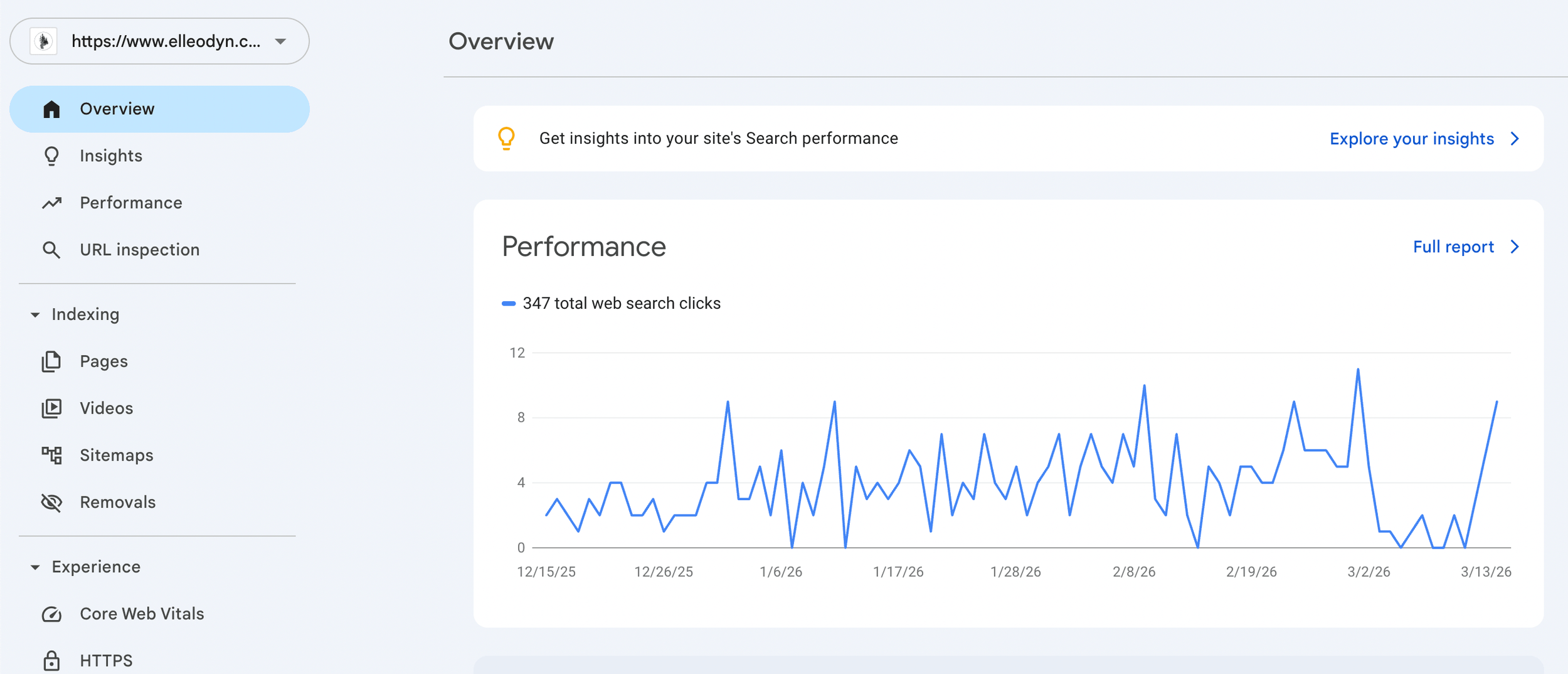
This is what the first page you see in Google Search Console looks like. (Mine is in the process of being rebuilt due to a copyright infringement, so don’t let these stark clicks scare you!)
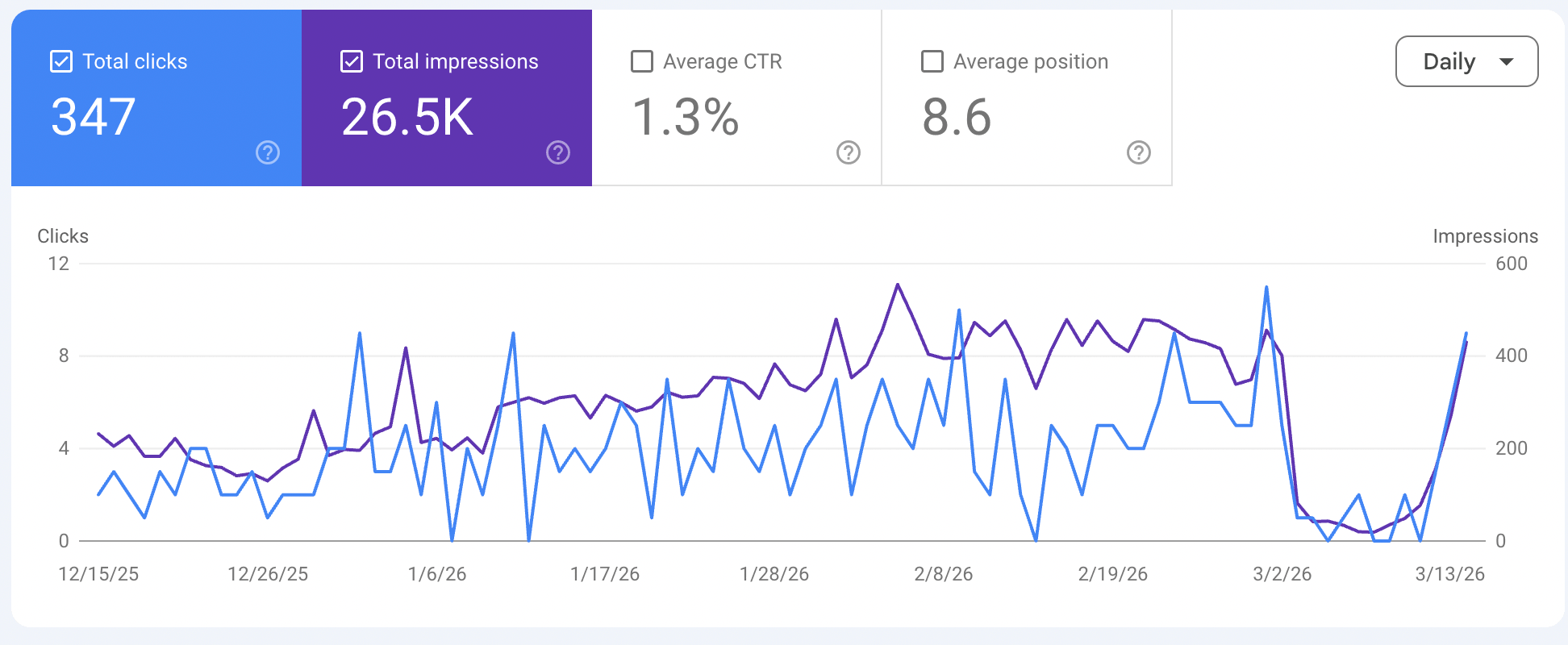
Clicks means how many people actually clicked to see your website. Impressions means how many people saw your website.
2. What words are people typing to find me?
Why check it: This tells you exactly what search terms are bringing people to your site. You might discover you're ranking for things you didn't expect, or missing obvious keywords you should be targeting. This is some of the most valuable free research available to any business owner. (and yes, this can be fun too!)
How to check it:
Stay in "Search results."
Scroll down past the graph to the table
Click the "Queries" tab if it isn't already selected
You'll see a list of search terms people typed before landing on your site
Notice which ones are getting lots of clicks and celebrate your content doing its job! (unless you are accidentally optimized for the wrong things)
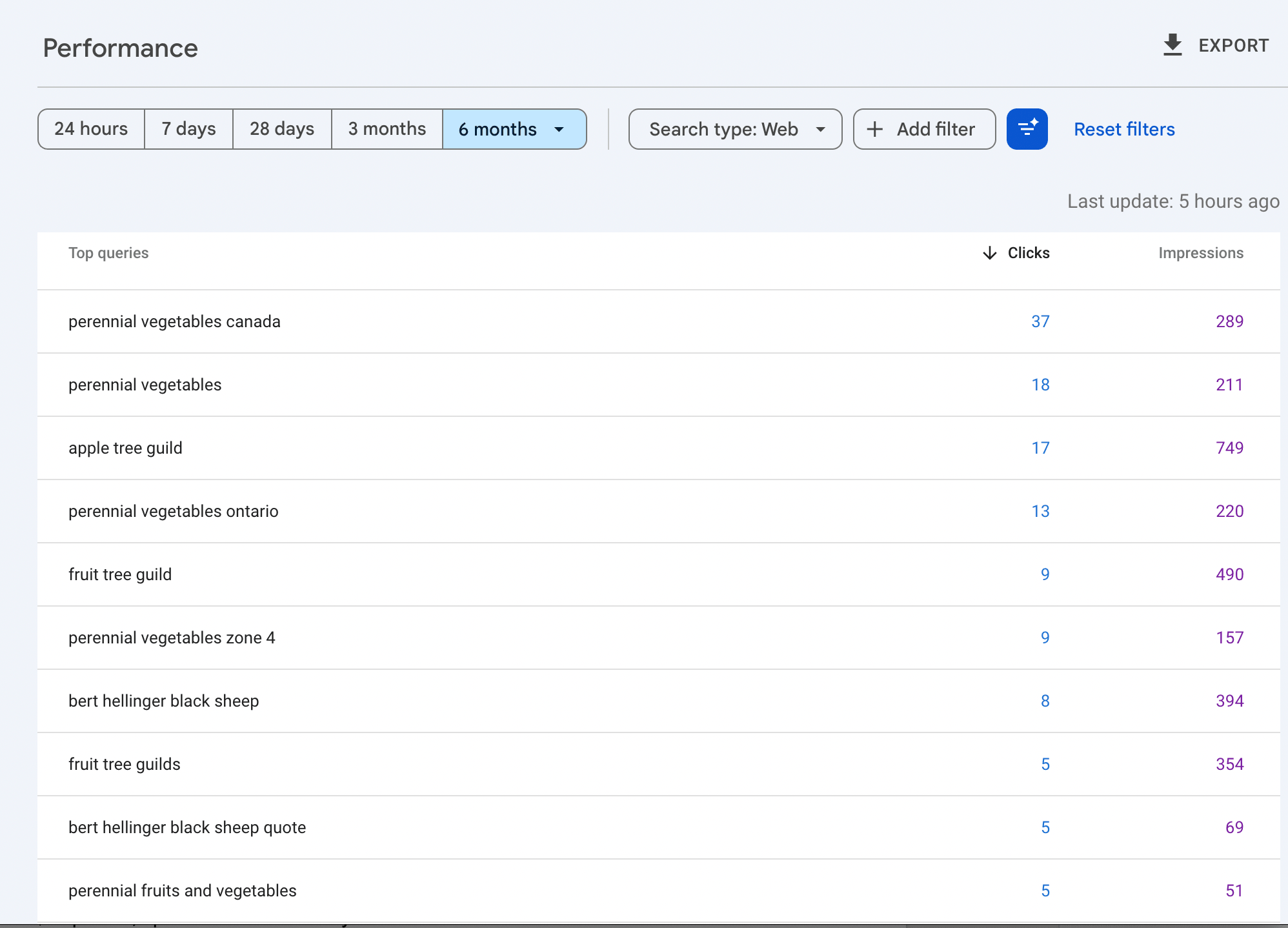
Ok. So you can see here that my website (yes, my seo business website) is having excellent results for my gardening and food forest content. Let this be a lesson for us all, this actually has impacted my SEO for my SEO business negatively because I was misunderstood as a gardening website. We can all chuckle at this another time, right now I’ve been getting to work to move all my “famous” gardening content to a new website. But - this does show you how to see what your website is being found for. (don’t do what I did here).
3. Which pages are actually getting traffic?
Why check it: You might assume your homepage gets all the traffic, but often a specific service page or blog post is your real front door. Knowing this tells you where to focus your energy and/or which pages need more work to do what you want them to.
How to check it:
Stay in "Search results."
Click the "Pages" tab in the table below the graph
You'll see each URL and how many clicks it gets
Sort by Clicks to see your top-performing pages
Is that page doing its job once someone lands on it? For example, if you want people to book prenatal classes, are they booking from that site? Or if it’s a blog post, is it driving clicks, and is it internally linked to one of your service pages?
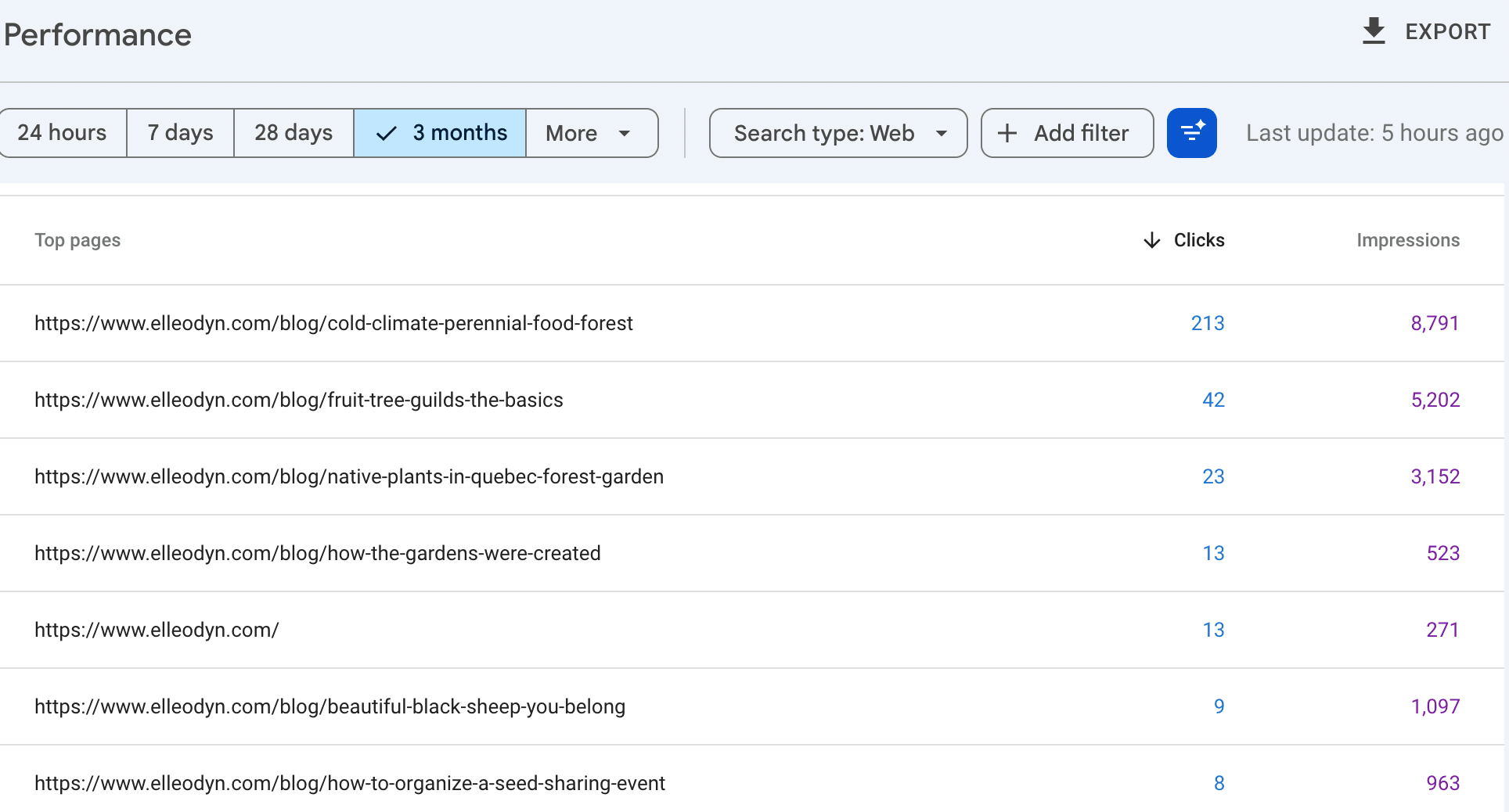
Now, if this were a gardening website, this is excellent!! (Sadly, this was me inserting my love of gardening into my SEO-Copy business and it took over…oops).
4. Does Google have any problems crawling my site?
Why check it: If Google can't read your pages properly, it won't rank them. This check catches technical problems you'd never notice just by looking at your site. It's the kind of thing that can quietly cost you traffic for months without you realizing it (psst, like all my gardening content on my business page - that is an example of something I could have caught sooner!).
How to check it:
Click "Pages" in the left menu (not the tab inside Search Results — the standalone menu item)
You'll see a chart split into "Indexed" and "Not indexed."
Indexed means Google has read and stored that page (in the library of the internet)
Not indexed means Google is ignoring it for some reason (sometimes that’s on purpose)
Click "Not indexed" to see why. Common reasons are "Duplicate content" or "Crawled but not indexed," which are worth investigating
All your important pages should be in the Indexed column
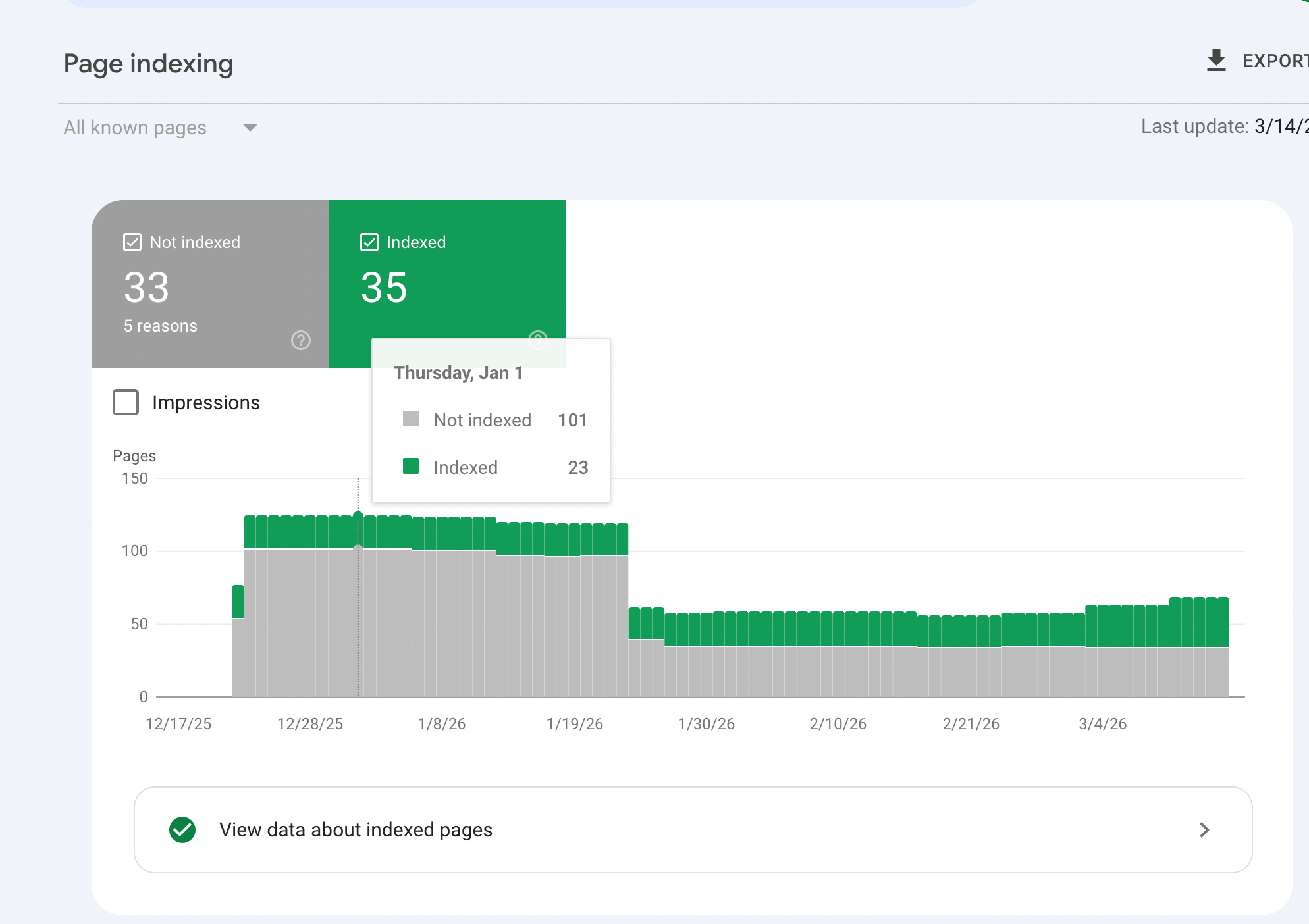
The no-index, indexed columns. This is how I found out my old photography site had been copied. None of my blog posts were indexed due to “duplicate content”. A story for another time. All you need to see here is what it looks like so you know you are in the right place when you get here.
5. Is my site showing up the way I want in search results?
Why check it: This is where you catch pages with missing titles, missing meta descriptions, or other issues that make your listings look unprofessional in search results. First impressions in Google matter. A poorly written or missing description can cost you clicks even when you're ranking well.
How to check it:
Click "Search results" in the left menu
Click on any specific page URL from the Pages tab
Look at the average Position number, this tells you where you rank on average for that page
Then go to your actual page in Search Console and click "URL Inspection" at the top
This shows you exactly how Google sees that specific page
Check that the title and description showing are the ones you actually want. I they look wrong Google may be overriding them with its own version
FUN RIGHT??
If this brought up a long list of things you want to fix but you're not sure where to start, that's exactly what a VIP Day is for. We spend a focused day working together on your website, SEO, and online presence. You leave with the most important things done and a clear picture of what comes next.
Learn more at elleodyn.com/vip-days.